Show the full silhouette
Avoid cutting off the top, base, or projecting parts of the object. If the source photo crops a handle or tail, Tripo must guess how it continues outside the frame.
Image to 3D · Tripo P2
Turn one clear picture of an object into a downloadable 3D model. Upload a product photo, prop, or character reference, choose texture detail, then inspect the generated GLB from every angle.
Create
For best results, use a single object with a clean background and visible edges. The model must infer any sides not shown in the picture, so exact geometry is not guaranteed.
This run: 16 credits for one model.
Subscribe or purchase enough credits to use 3D generation. A 10-credit pack alone is not enough; signup promotional credits alone do not unlock this tool. Failed requests refund reserved credits.
After generation, rotate your GLB here to inspect the shape before downloading it.
A generated model is a starting point. Check its unseen sides, texture placement, and scale in your target application before production use.
Example
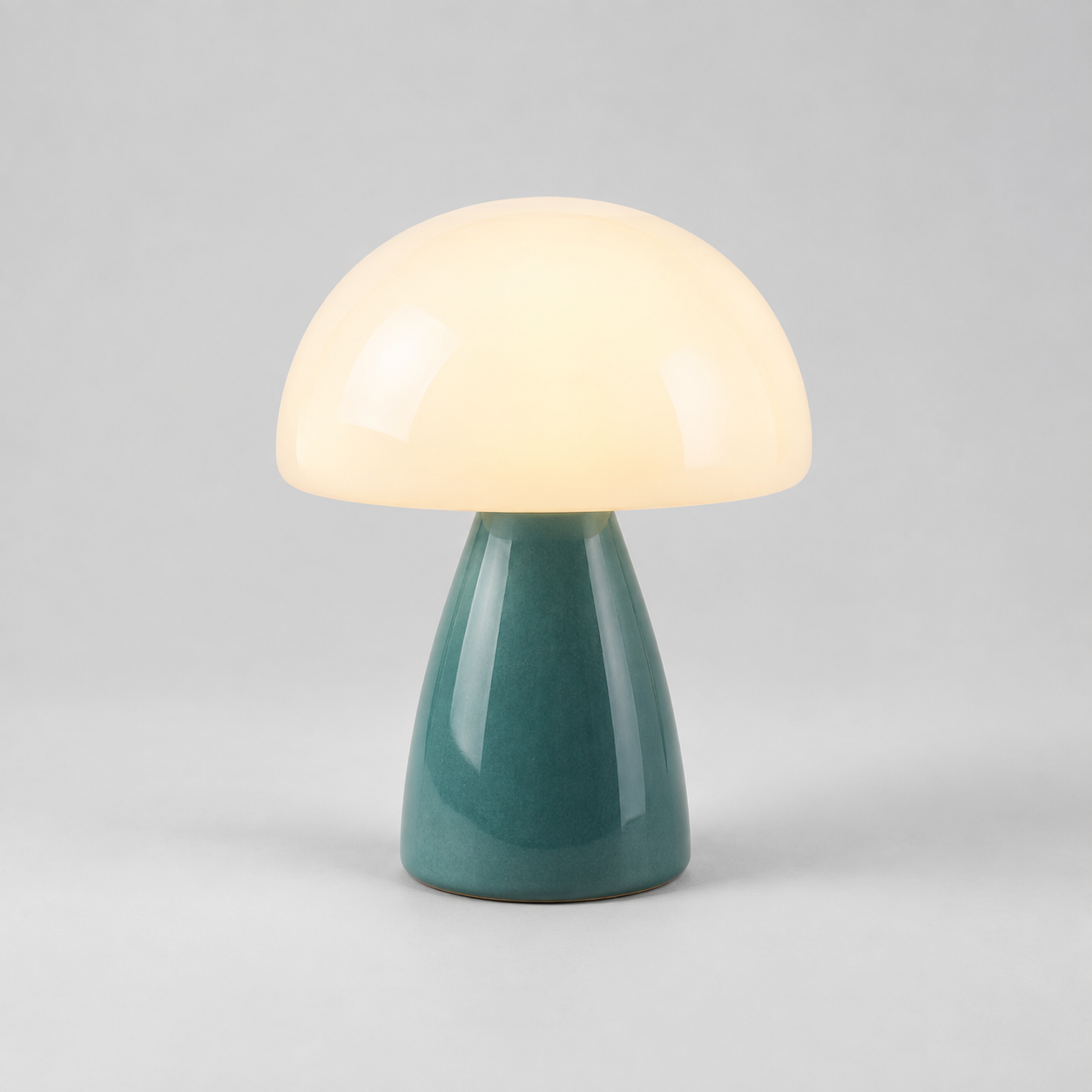
The lamp image below is a sample input created for this page—not a Tripo-generated result. Its full silhouette and uncluttered background make the object easier to identify. Hidden surfaces still have to be inferred by the model.
A white or plain background can help separate the subject from scenery, but it cannot supply missing back, underside, or internal details. Review the finished mesh rather than assuming the photo was reconstructed exactly.
Input guidance
The source image is the only visual evidence the model receives. A little preparation can make the result easier to inspect, though it cannot guarantee exact geometry.
Avoid cutting off the top, base, or projecting parts of the object. If the source photo crops a handle or tail, Tripo must guess how it continues outside the frame.
A neutral or contrasting background makes it easier to see the subject's outline. Remove unrelated objects when possible; a busy scene may be interpreted as part of the model.
The back, underside, and occluded parts cannot be recovered from a single view. Rotate the GLB after generation and compare those areas against any additional references you have.
A generated mesh can be useful for concepting and prototyping, but inspect texture placement, dimensions, and topology in your target 3D software before a final game, print, or product workflow.
Workflow
Upload a clear photo or illustration of one complete object. We resize it for the request and review it for safety before sending it to Tripo P2.
Use geometry-only for your own materials, or choose standard, detailed, or extreme textures. The exact credit charge appears before generation.
Rotate the saved model in your browser, then download the GLB. Look closely at the back and hidden edges, because one photo cannot show every side.
Credit pricing
Image to 3D and Text to 3D use the same credit prices. Choose the texture setting that fits your project; the exact credit charge is shown before generation.
| Texture | Credits per model |
|---|---|
| No texture | 15 credits |
| Standard | 16 credits |
| Detailed | 17 credits |
| Extreme | 18 credits |
Failed requests refund reserved credits. See credit packs and plans before generating.
Related workflows
No. A single image only shows one view. Tripo P2 infers hidden surfaces, so inspect the GLB from all sides and revise your input if exact product geometry matters.
Use one fully visible object with clear edges and limited background clutter. Tiny, cropped, or heavily occluded subjects leave more shape to inference.
No. Camera Angle creates new 2D pictures. This tool creates a 3D model file that you can rotate and download.
Yes, this workflow saves and delivers a GLB model. It does not advertise FBX or production-ready measurements.